Print Labels Right in Metrc, Prefilled With Metrc Data
Open Label Studio on top of the Metrc page you're on, pick your packages, and print labels already filled in with each one's tag, item and lab results, on the printer you already have.
A rack of finished packages, each waiting for a label with its tag, its item name and its potency. All of it is already in Metrc. Getting it onto a label usually means leaving Metrc for separate label software and copying 24-character tags into it by hand, checking every digit, because one wrong character puts the wrong tag on a package.
Label Studio, part of the T3 Chrome extension, lets you print labels right in Metrc, prefilled with Metrc data. Choose the packages, pick a label size, and get a PDF with one label per package, ready for a thermal printer or a sheet of Avery labels.
Print package labels without leaving Metrc
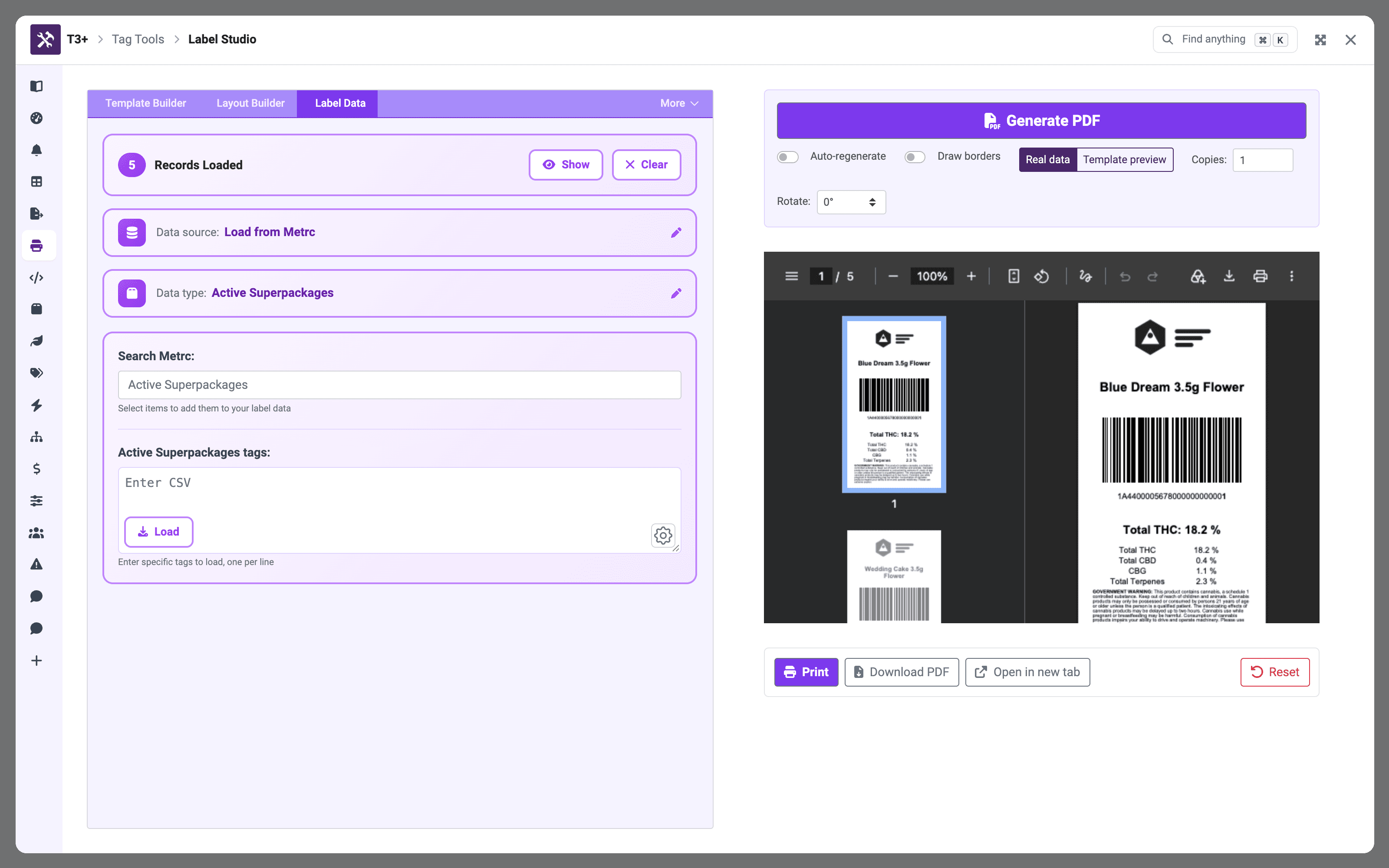
Open T3 on any Metrc page with Alt + T, or Option + T on a Mac, and choose Label Studio. Three tabs carry the work: Template Builder sets the label you print on, Layout Builder sets what goes on it, and Label Data holds the records to print. The PDF preview stays on the right while you work.
In Label Data, choose Load from Metrc and a data type. Active Superpackages are your active packages with their lab results attached. Then search Metrc for a package and click it, or paste a list of tags, one per line, and click Load. Every record becomes one label, so 30 packages print 30 labels.
Click Generate PDF. The preview shows every label in the run, with Print, Download PDF and Open in new tab below it.
Put lab results on every package label
Superpackages carry each package’s lab results, so potency goes on the label beside the tag: total THC, total CBD, and other tested values such as CBG or total terpenes. The values come from the lab results recorded in Metrc for that package, so nothing is copied off a certificate of analysis by hand.
Placing a value doesn’t mean memorizing field names. In Layout Builder, Insert Field lists everything your loaded packages contain, with an example value beside each one.
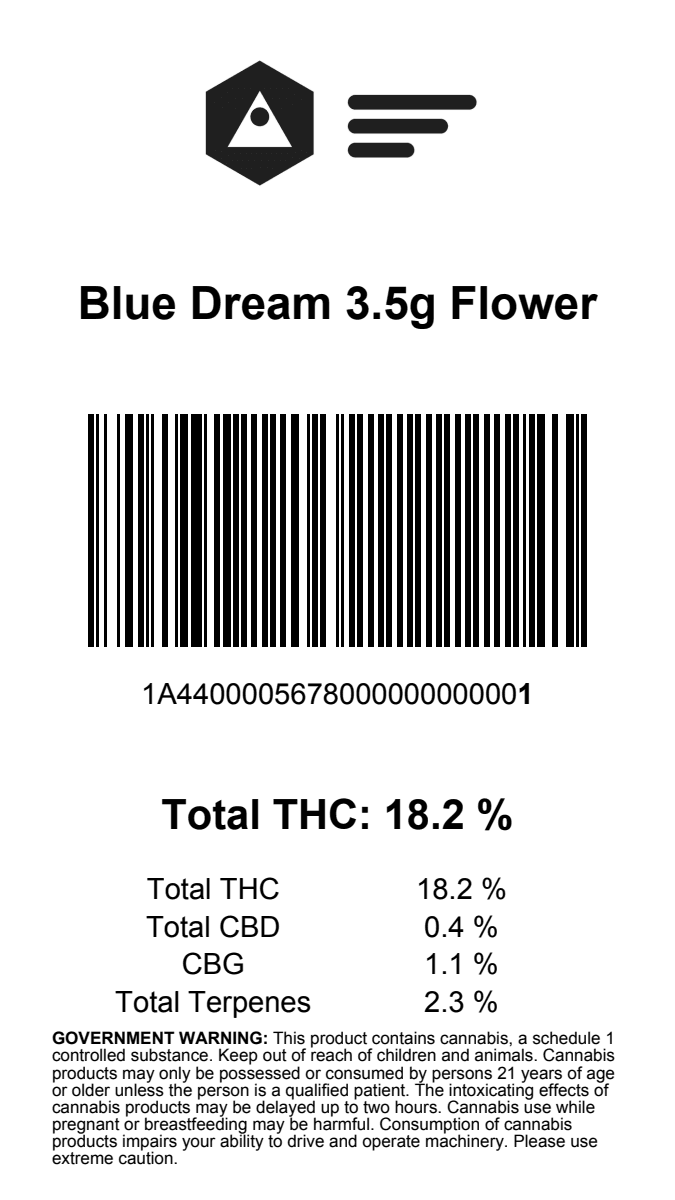
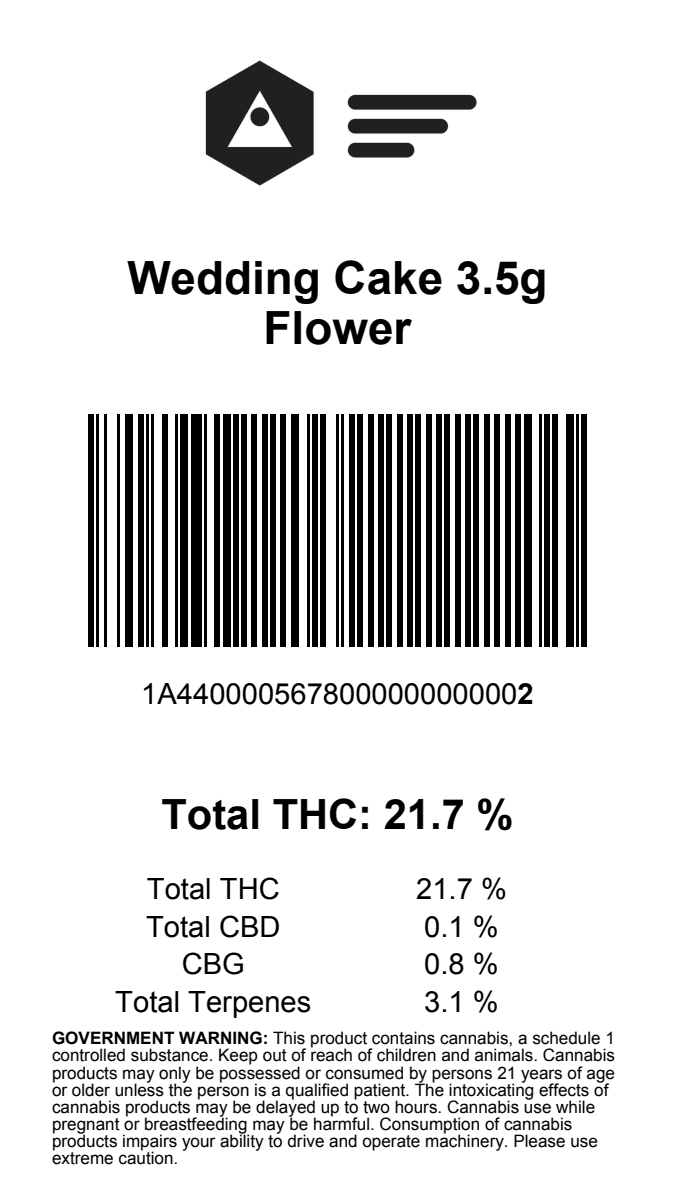
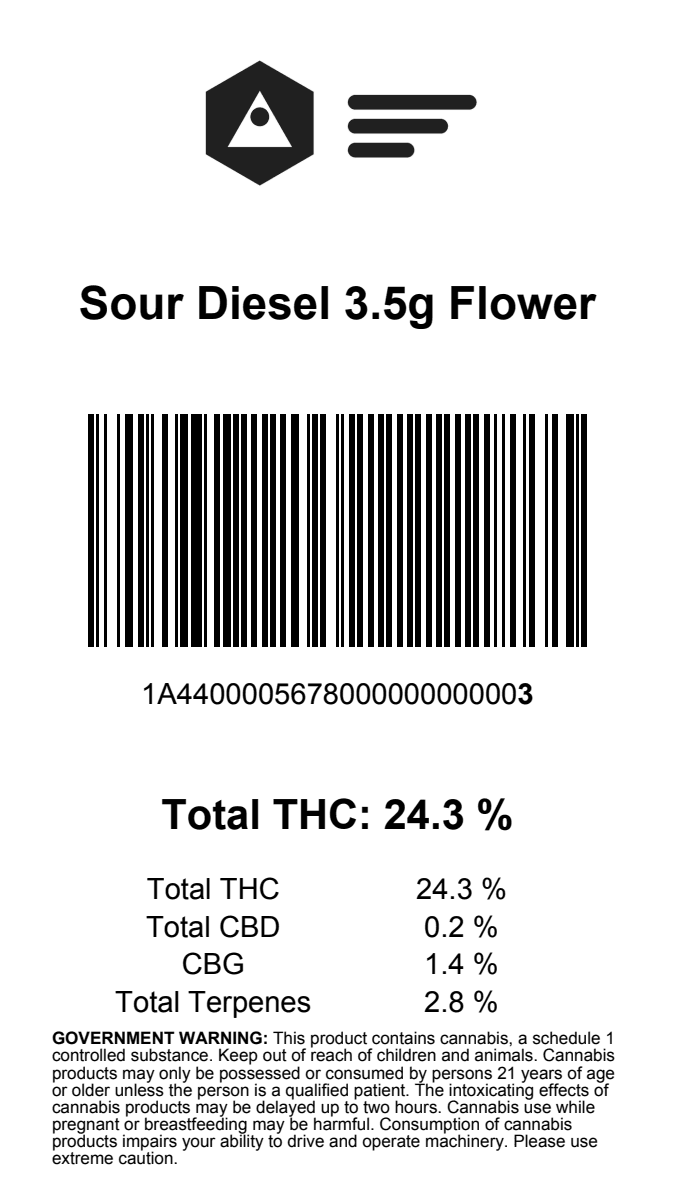
State warnings don’t need retyping either. Built-in Data holds warning text for 17 states, state warning symbols, and Poison Control Center contact details, ready to place on any label.
Print one label from the package table
Not every label is part of a batch. On Metrc’s packages table, each row’s T3 menu has Quick print label. It builds that package’s label and opens the print dialog, without opening Label Studio. Plants and plant batches have it too.
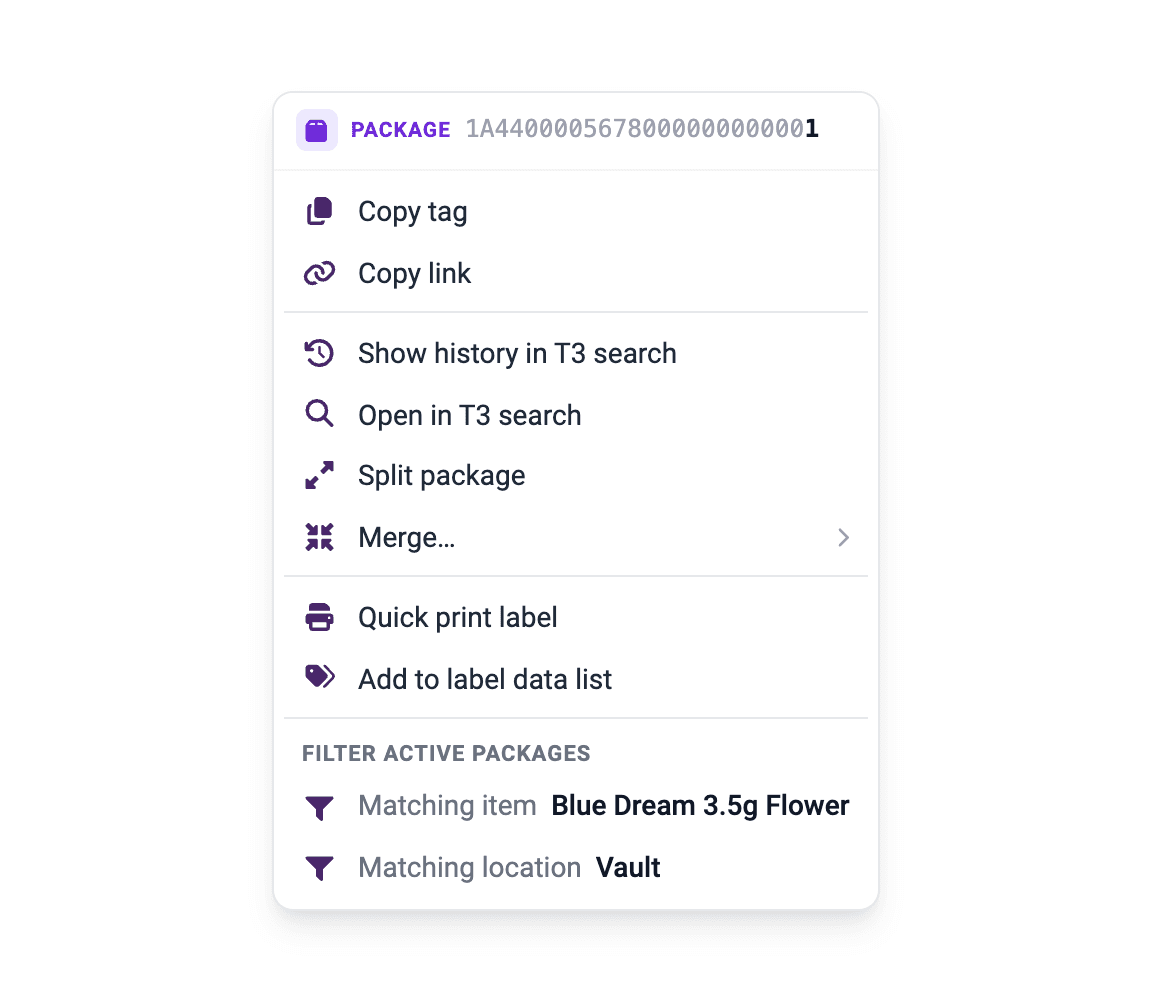
Set it up once on the Quick Print tab, under More: choose the label template, then a layout each for packages, plants and plant batches. A plant tag can look different from a package label, and both still print in one click.
Add to label data list, in the same menu, collects packages as you work down the table, so a batch can be printed together later. The same actions are on a package’s result in T3 search, which Alt + S opens.
Print on the printer you already have
Label Studio produces a PDF, so any printer that can print a PDF can print your labels: a thermal label printer with a roll, or an inkjet or laser printer with sheets of labels. No label design software is needed: open the PDF and print it.
On Template Builder, search the starter templates by size, brand or printer type, such as “3x1”, “Dymo” or “thermal”. Hover a result to preview it before you pick it.
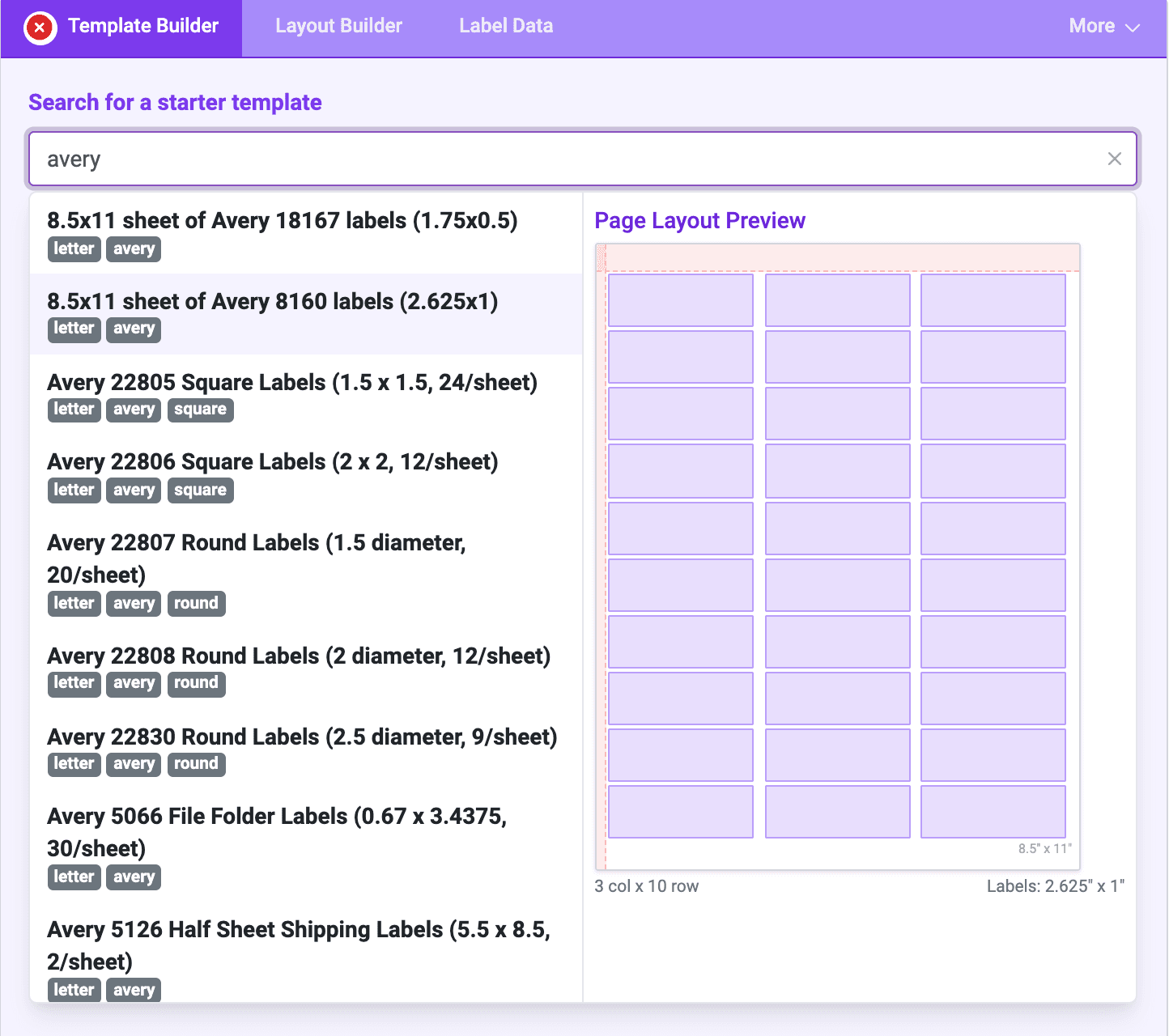
Templates and layouts are saved separately, so one layout prints on any template, resized to fit. Moving a design from a thermal roll to a sheet of Avery labels means choosing a different template, not rebuilding the label.
Two settings fix most first prints. In the print dialog, set the paper size to the label size and scaling to 100% or Actual Size. On a thermal printer, if labels come out last to first, turn on Reverse print order in Label Studio’s Settings. Printing label PDFs covers the rest, from printer drivers to barcodes that won’t scan.
Label more than packages
The same studio covers the other labels a facility prints:
- Plants and plant batches load from Metrc the same way packages do, and so do in-transit packages.
- A CSV or JSON file works when the data lives somewhere else, one row per label.
- Blank records print a run of identical labels with no Metrc data at all, such as a sheet of state warnings.
- Barcodes and images go anywhere on the label: Code 128 and Code 39 barcodes, QR codes, your logo, boxes and tables.
- Saved designs are visible to the Metrc users who can access the same license, so a label designed once is ready for the whole team.
- Your own systems can generate the same labels through the T3 API.
Start printing labels in Metrc
- Install the T3 Chrome extension.
- Log in to Metrc, press Alt + T, and choose Label Studio.
- Click Show me an example to load a working label, or follow the label tutorial to build a package label from scratch in about 12 minutes.
T3 Free is a preview of Label Studio: starter templates, demo data and the layout editor all work, but loading data from Metrc needs T3+, and labels printed without it carry a watermark.
Full reference: the Label Studio reference and T3 Labels on the wiki, and the Label Studio page.