
Metrc Is Now for Power Users
Press Ctrl+K, type a few letters, and land on any Metrc page, table or facility. T3 moves Metrc from the mouse to the keyboard, for the people who work in it all day.
Click through Metrc’s menus to the plants page. Wait for it to load. Click the Flowering tab. To check the retail license, open the facility dropdown, scroll, and click. Every move in Metrc goes through the mouse, and someone who works in it all day makes the same trips over and over.
T3 lets power users move through Metrc from the keyboard instead. Press Ctrl + K on any Metrc page, type a few letters, and press Enter: you’re on the page, table or facility you wanted. Metrc keyboard shortcuts for search, filters and menus cover the rest, so your hands can stay on the keys.
Jump anywhere in Metrc with Ctrl+K
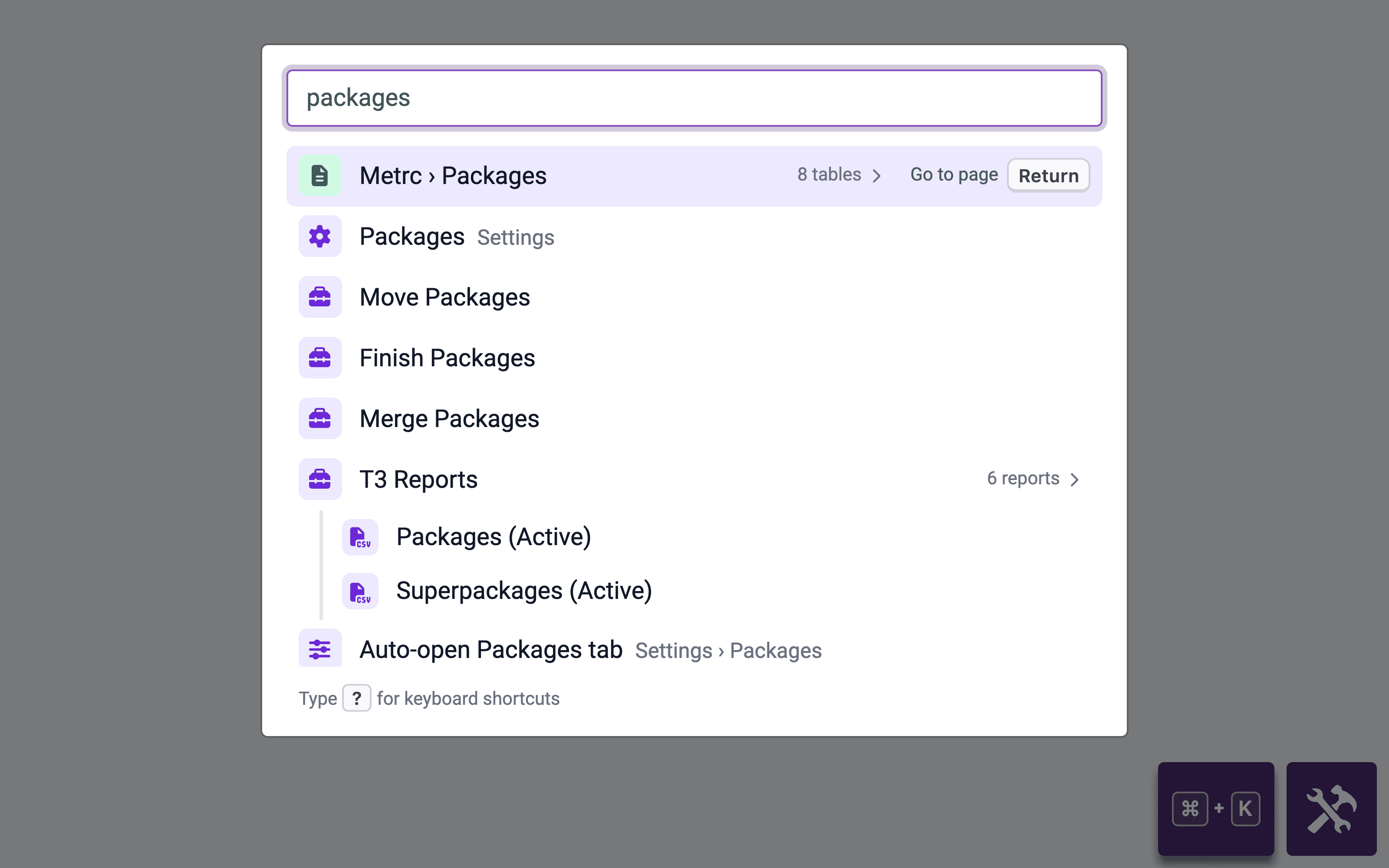
Press Ctrl + K, or Cmd + K on a Mac, on any Metrc page. A box opens over the page. Type a few letters, and it lists everything that matches:
- Metrc pages and tables your license can open
- T3 tools, such as Move Packages or Finish Packages
- Reports in T3 Reports
- T3 settings, such as dark mode
- Your other facilities
- Quick scripts, and T3 actions such as opening search
The best match is already highlighted, so Enter takes you straight there. With nothing typed, the box lists the places you opened most recently, so the table you just left is a few keys away.
A result with a shortcut of its own shows it beside its name, so you pick up the shortcuts as you use the box. Tools and reports that need T3+ carry a T3+ badge.
Three everyday trips through Metrc show the difference:
Land on the table, not just the page
Metrc’s pages read Metrc › before their name, so they stand apart from T3’s tools. A page’s tables show under it when they match what you typed: plants flowering finds the Flowering table under Plants.
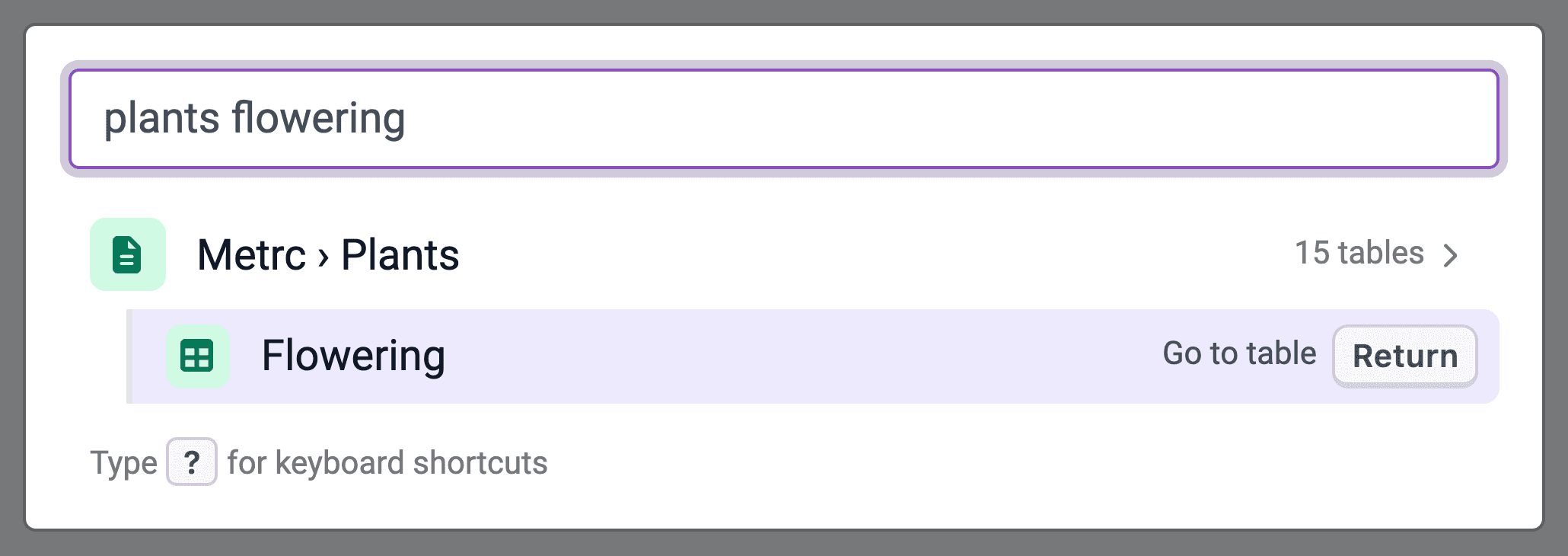
The highlighted row says Go to page or Go to table. Press Enter, and T3 opens the page and clicks the tab for you. Ctrl + Enter opens it in a new tab instead, which leaves the page you’re on alone.
A page’s row also counts its tables. With the page highlighted, press → to list them all, and ← to go back to the ones that match. Reports under T3 Reports work the same way: active packages finds the reports on active packages.
Switch facilities without the dropdown
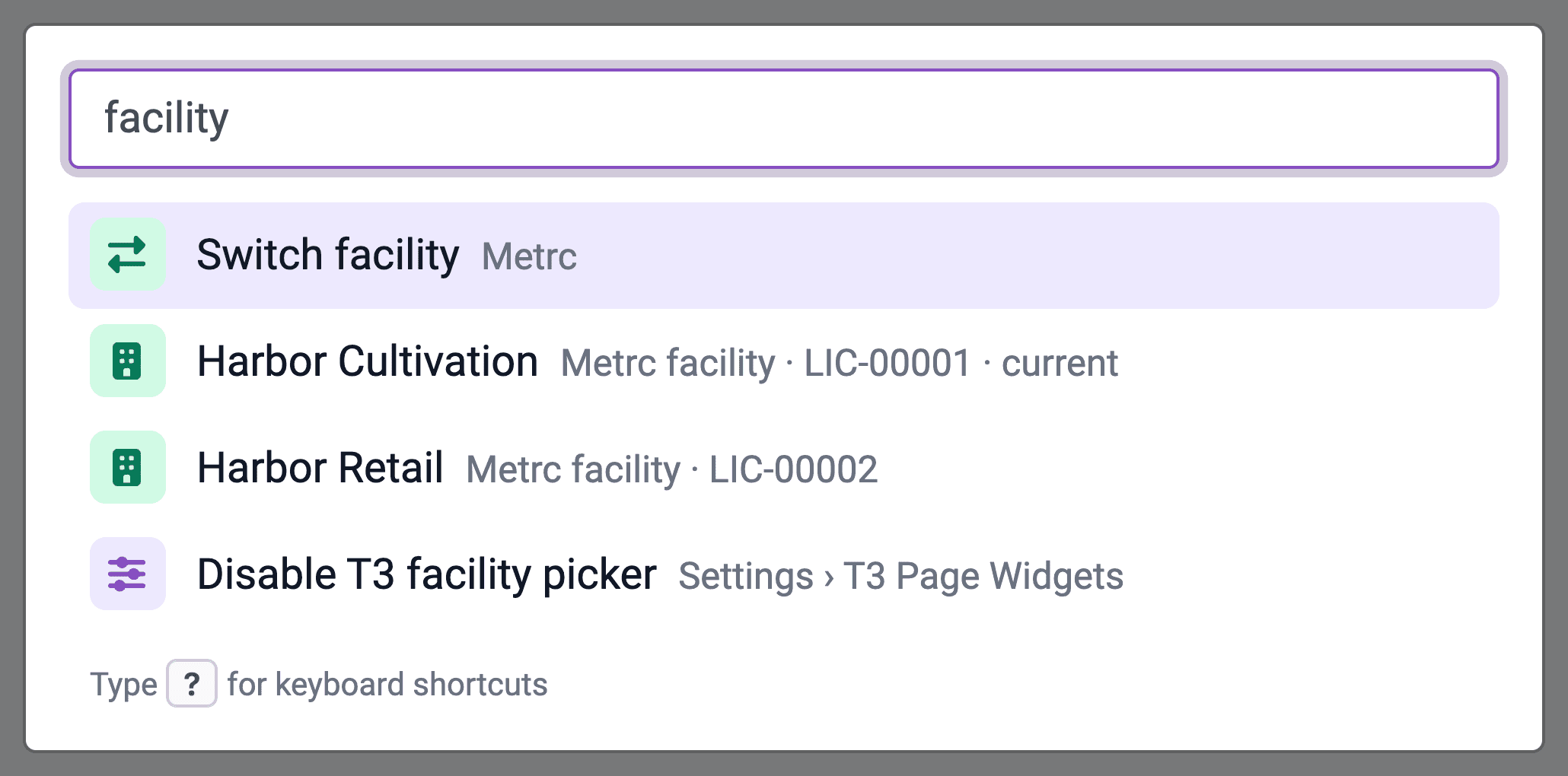
Type part of a facility’s name or license number, and press Enter on it to switch. Moving from the cultivation license to the retail one takes a few keystrokes instead of a trip through Metrc’s facility menu.
Jump straight to a package from its tag
A partial tag on a bin shouldn’t mean a hunt through the Packages tabs. Press Alt + S (Option + S on a Mac) to open T3 search, type the last digits of a tag or a manifest number, and every package, plant, transfer and tag that matches comes back in one list.
Press Enter on a result, and T3 opens its page in Metrc, clicks the right tab, and filters the table to that one record. Ctrl + Enter opens it in a new tab. If the package has been finished or put on hold, Shift + Enter searches those too.
When the table on screen is already the right one, Alt + F jumps to the filter bar above it. Type Location:Vault, press Enter, and the table filters, with no column menu to open.
Metrc keyboard shortcuts worth learning first
Ctrl + K, Alt + S and Alt + F cover most trips. Here they are with the rest of the keys worth knowing. On a Mac, use Cmd for Ctrl and Option for Alt.
- Ctrl + K
- Find a Metrc page or table, facility, T3 tool, report or setting
- Alt + S
- Open or close T3 search
- Alt + F
- Filter the table on screen
- Alt + T
- Open or close the T3 toolbox
- Alt + /
- Show the keyboard shortcuts
- Esc
- Close the window in front
- ↑ / ↓
- Move through the results
- Enter
- Open the result in Metrc, with its table filtered to it
- Ctrl + Enter
- Open it in a new tab
- Shift + Enter
- Search inactive, on hold and more
- →
- Move to the result's actions
- Ctrl + C
- Copy its tag, number or name
- Alt + [ / Alt + ]
- Previous or next tab, such as History
- Enter
- Add the filter you typed
- Backspace
- In the empty bar, edit the last filter
- Delete
- On a filter, remove it
- ↑ / ↓
- Move between actions
- → / ←
- Open or close a submenu, such as Merge…
- Enter
- Run the action
- Esc
- Close the menu
Every T3 list and menu shares the same keys, so once ↑, ↓, Enter and Esc work in one, they work everywhere. Esc closes whatever is in front: an open list or menu first, then the T3 window, then Metrc’s own window.
See the shortcuts for whatever is open
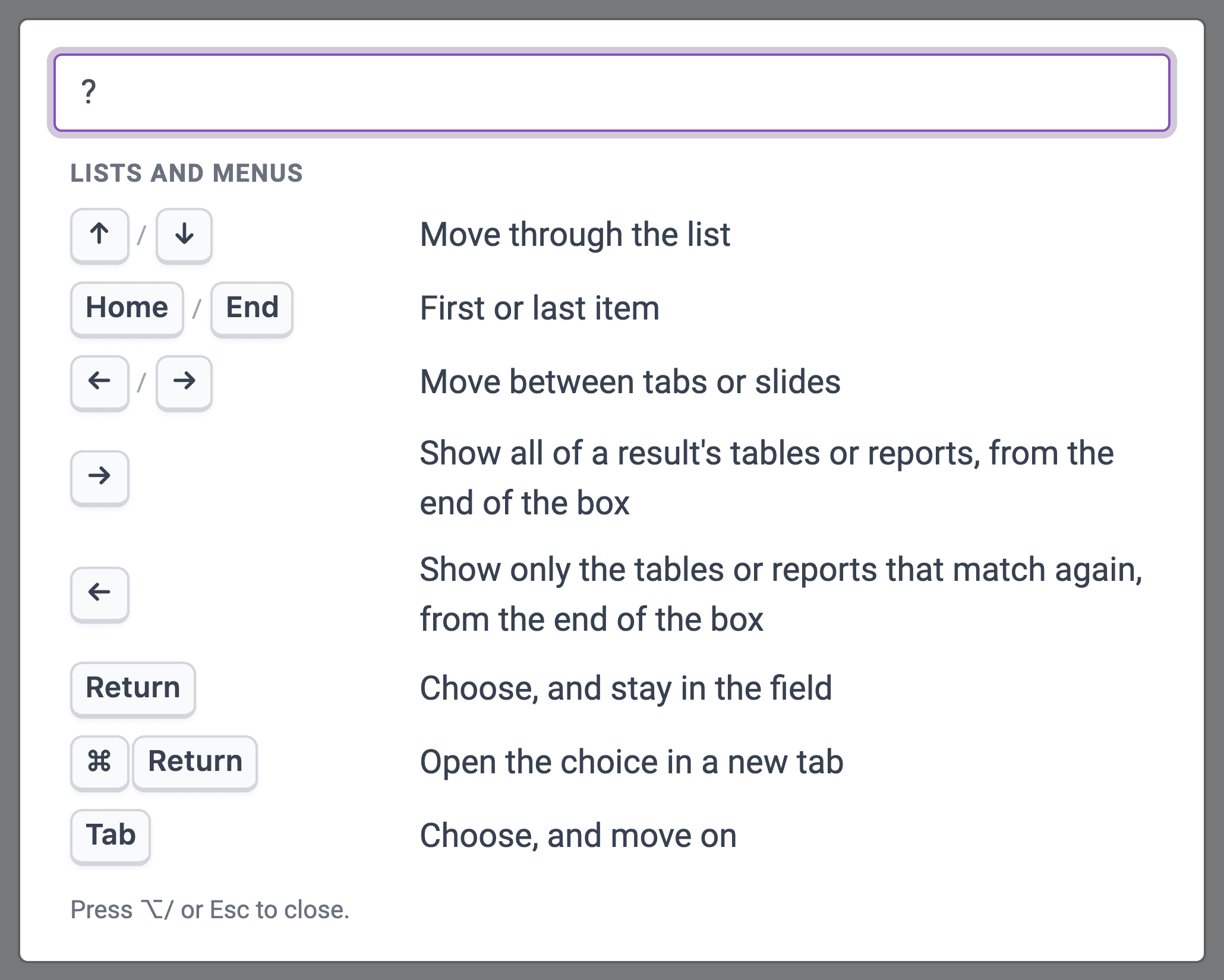
There’s no need to memorize the list above. Press Alt + /, or type ? in the Ctrl + K box, and T3 lists the shortcuts for what is open, such as a row menu or a tool, along with the ones that work anywhere. Type after the ? to narrow the list.
Start using Metrc from the keyboard
- Install the T3 extension.
- Log in to Metrc and press Ctrl + K (Cmd + K on a Mac).
- Type the Metrc page you open most, such as packages, and press Enter. Then type ? to see what else the keyboard can do.
Ctrl + K and every shortcut here are free. Tools and reports marked T3+ need T3+.
Full reference: keyboard shortcuts on the wiki, and Metrc search for everything T3 search and the filter bar can do.