
Metrc Search: Find Packages, Manifests, Plants, Items and Everything Else
T3 adds a global search to Metrc. Type the last digits of a tag, a manifest number or a strain name, see every match in seconds, and open it in Metrc with the table already filtered. Search one license or all of them.
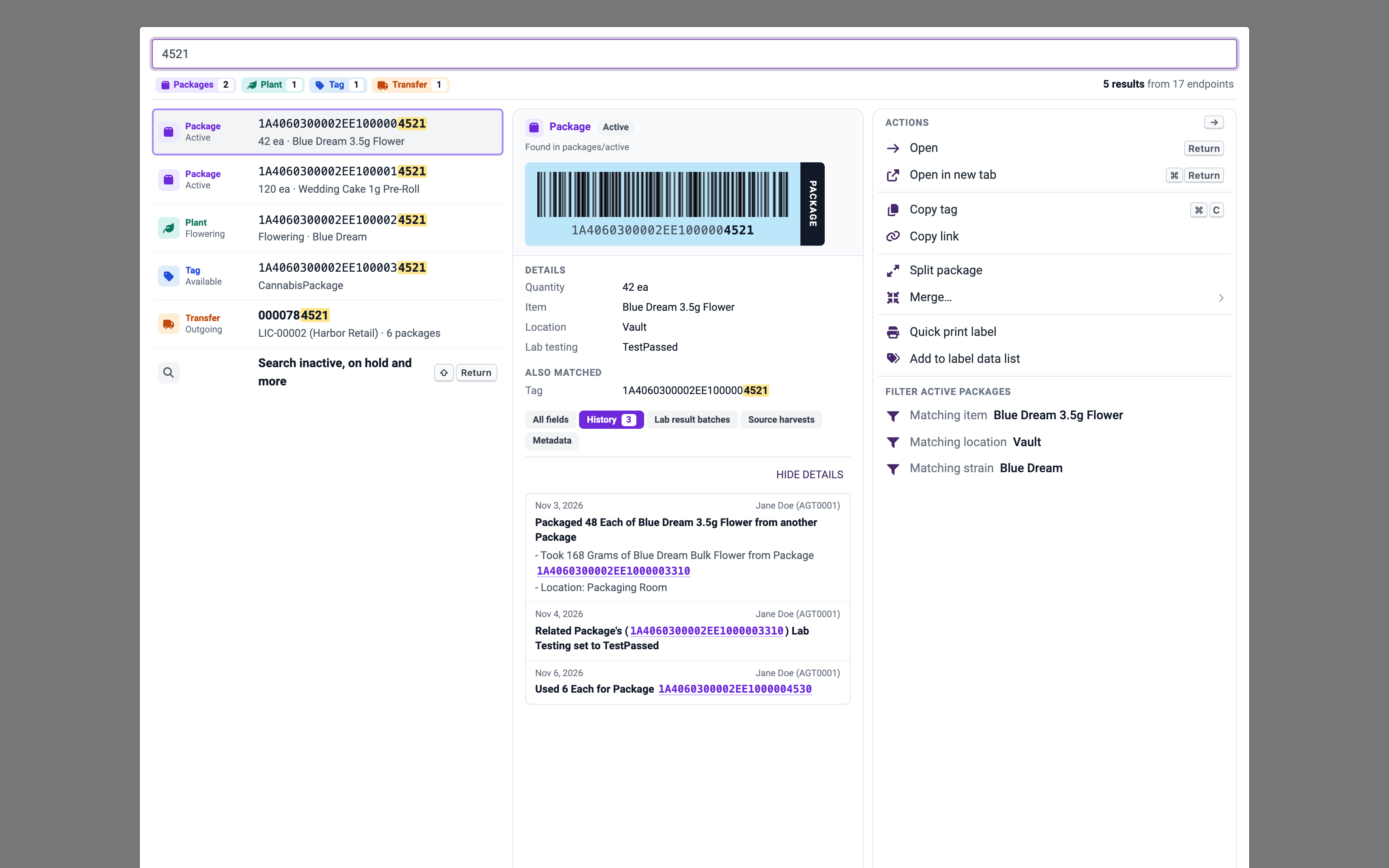
The last four digits of a tag, read out over the phone. A manifest number in an email from a buyer. A strain name from the grow room. A Metrc search usually starts with a question: which page, and which tab? Packages, plants and transfers each have their own tables, a package can sit on Active, On Hold, In Transit or Inactive, and each license has to be checked on its own.
The T3 extension adds a global search to Metrc. Type what you have into one box, and every package, plant, transfer, item and strain that matches comes back in one list within seconds. Pick a result, and T3 opens it in Metrc with the table already filtered to it.
Search all your licenses from one box
Press Alt + S on any Metrc page, or Option + S on a Mac, or click the Search Metrc bar at the top of the page. One search covers packages, plants, plant batches, harvests, transfers, tags, items, strains, locations, sales and processing jobs. There’s no need to say which you’re looking for.
Search starts on the license you’re on. To check the rest, press Alt + Enter (Option + Enter on a Mac), or click the row that reads, for example, Search 23 other licenses. T3 searches every license in Metrc’s facility menu for what you typed and shows how many it has covered so far. To search some licenses every time, check them under What to search, and they stay on for that browser tab.
Results arrive as Metrc answers, best match first. Above them, a chip for each type counts what was found, such as Packages 2 and Tag 1. Click a chip to list only that type. Each result shows its type and state (a package that is Active, a tag that is Used), then its tag, number or name with what you typed highlighted, then a few details such as quantity and item.
With nothing typed, the box lists your recent searches, so the package you looked up this morning is one click away.
Metrc package search: four digits finds it in seconds
The end of a tag is what people write on bins and read out loud. Type those digits, 4521 for example, and every package and plant whose tag ends in them comes back, along with any transfer whose manifest number does. A full 24-character tag works too, and so does a name: a strain, an item, a location, a plant batch or a harvest.
T3 searches active records and transferred packages first. When the package you want has been finished or put on hold, press Shift + Enter, or click Search inactive, on hold and more, to search the rest. If nothing active matches, T3 searches them on its own.
Jump straight to the record in Metrc
Use ↑ and ↓ to highlight a result and press Enter. T3 opens its page in Metrc, clicks the right tab, and filters the table to that one record. Ctrl + Enter (Cmd + Enter on a Mac) opens it in a new tab instead, and Ctrl + C copies its tag.
Beside the results, each one lists what you can do with it. Copy link copies a link to the record in Metrc. A package adds Split package, Merge, Quick print label and its lab test PDFs. A transfer adds its manifest, Generate invoice and Create scan sheet. Actions marked T3+ need T3+.
The same actions are on every row of Metrc’s tables, behind the T3 button on each row, so a record you find by scrolling gets them too.
Trace a package back to its harvest
Under a result’s details, tabs show what Metrc knows about it: All fields, History, Lab result batches, Source harvests, and for other kinds of records, Plants, Packages or Transactions. History lists each entry’s date, who recorded it and what happened.
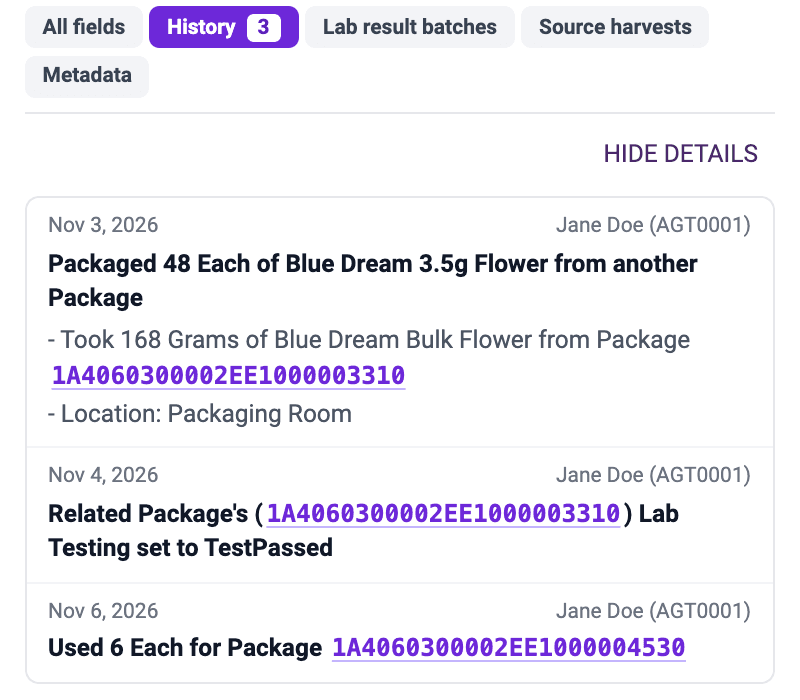
Every package, plant, plant batch, harvest and manifest named in the history is a link. Click the source package to open its history, then its Source harvests tab to reach the harvest, without opening a single Metrc page. Ctrl + [ and Ctrl + ] go back and forward through the records you followed, and Alt + [ and Alt + ] move between tabs.
From a Metrc table, Show history in T3 search in a row’s T3 menu opens search on that row’s history. If you used Metrc Explorer, this is where it went, and it’s free now.
Filter any Metrc table without the column menus
T3 puts a filter bar above Metrc’s tables. Type a column, a colon and a value, then press Enter: Location:Vault lists the rows whose location contains Vault. Short names work too, as in qty:>5. After the colon, = means exactly, != means not, and >, <, >= and <= compare numbers and dates.
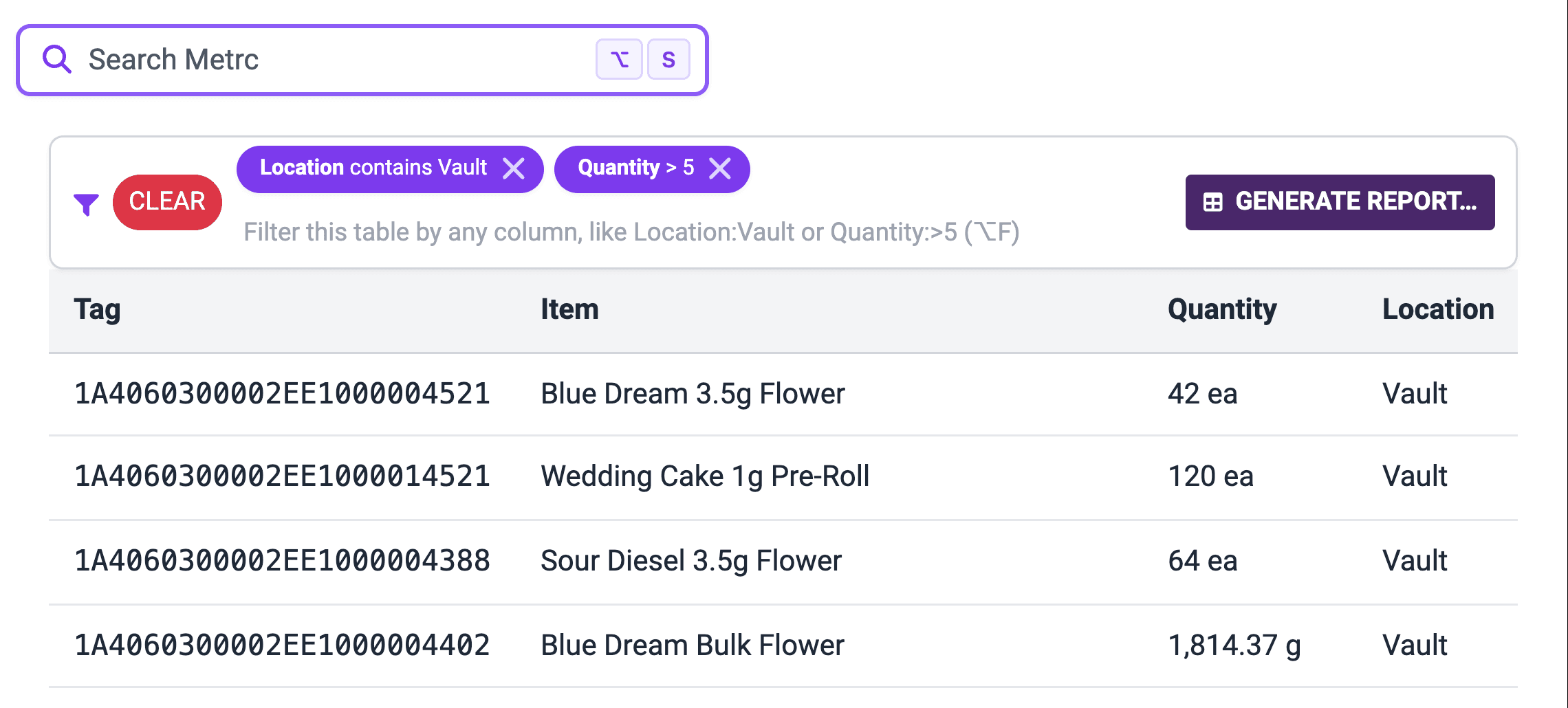
Each filter becomes a chip and applies to the table at once. Alt + F (Option + F on a Mac) jumps to the bar, Backspace in the empty bar edits the last filter, and CLEAR removes them all. Filtering on a column the table hides shows that column first.
The bar and Metrc’s own column menus share their filters: a filter set in a Metrc menu shows up as a chip, and the other way round. A filtered table also has its own link, so the page’s address reopens the table with the same filters. With T3+, GENERATE REPORT… at the end of the bar turns the filtered table into a T3 report.
One click from a package to every package like it
At the end of a result’s actions, quick filters list the rows that share a value with it: Matching item, Matching location, Matching strain and so on, each showing the value it filters by.
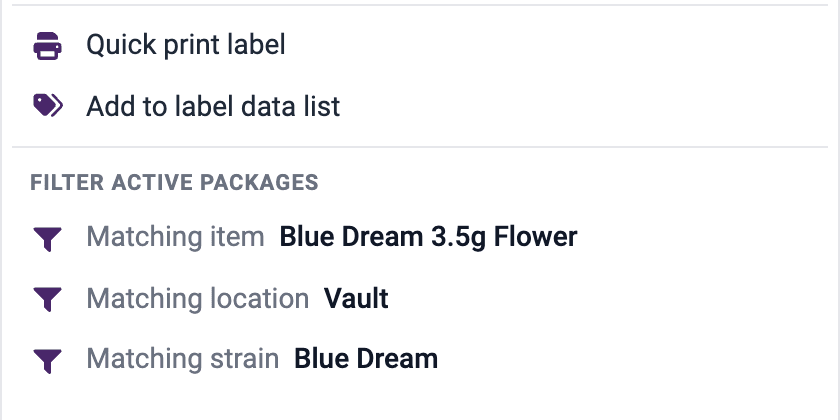
Choose one in search, and T3 closes search, opens the table the result is in, and adds the filter to the bar. Find one package of Blue Dream 3.5g Flower, choose Matching item, and every active package of that item is on screen. In a table row’s T3 menu, a quick filter adds its chip to the bar above that table.
Start using Metrc search
- Install the T3 extension.
- Log in to Metrc and press Alt + S (Option + S on a Mac).
- Type the last four digits of a tag, and press Enter on the package.
Search, its history tabs and the filter bar are free. Every step above also works without the mouse: see Metrc keyboard shortcuts for the rest.
Full reference: search, history and more, quick filters and the filter bar on the wiki. Developers can call the same search through the T3 API: see the T3 Search Engine.